
Key takeaways
To stop double bookings in Google Calendar, take bookings through an appointment schedule with conflict checking on, and mark every job busy on a calendar it checks. An ordinary calendar will not refuse an overlap, and a phone job never entered is invisible to every check, so whatever takes the call has to write the job down.
- Two customers cannot take the same slot. Google says each appointment time on a booking page can only be booked once, even with conflict checking turned off. The risk is a booking landing on top of your other commitments.
- Appointment schedules check your primary calendar and calendars you own, manage or are subscribed to. Checking secondary calendars needs an eligible Workspace or Google One plan, and co-host calendars are not checked by default.
- No booking-page setting closes the gap a phone job leaves, because it is not a calendar problem. It is a phone problem.
Why does Google Calendar let you double book?
Google Calendar lets you double book because, on an ordinary calendar, it is not trying to stop you. A double booking is two commitments in the same span of time, and Google Calendar will hold both without comment. Reviewing Google's own help pages turns up no setting that refuses or warns on an overlap between two normal events.
Google Calendar has one documented exception to holding overlapping events without comment, and it is narrow. A meeting room is a resource rather than a person, and Google says that if the room is already booked for an event at the same time, the room declines the request immediately. That behaviour arrived in April 2019 and applies to room resources, not to your calendar.
What an appointment schedule actually checks
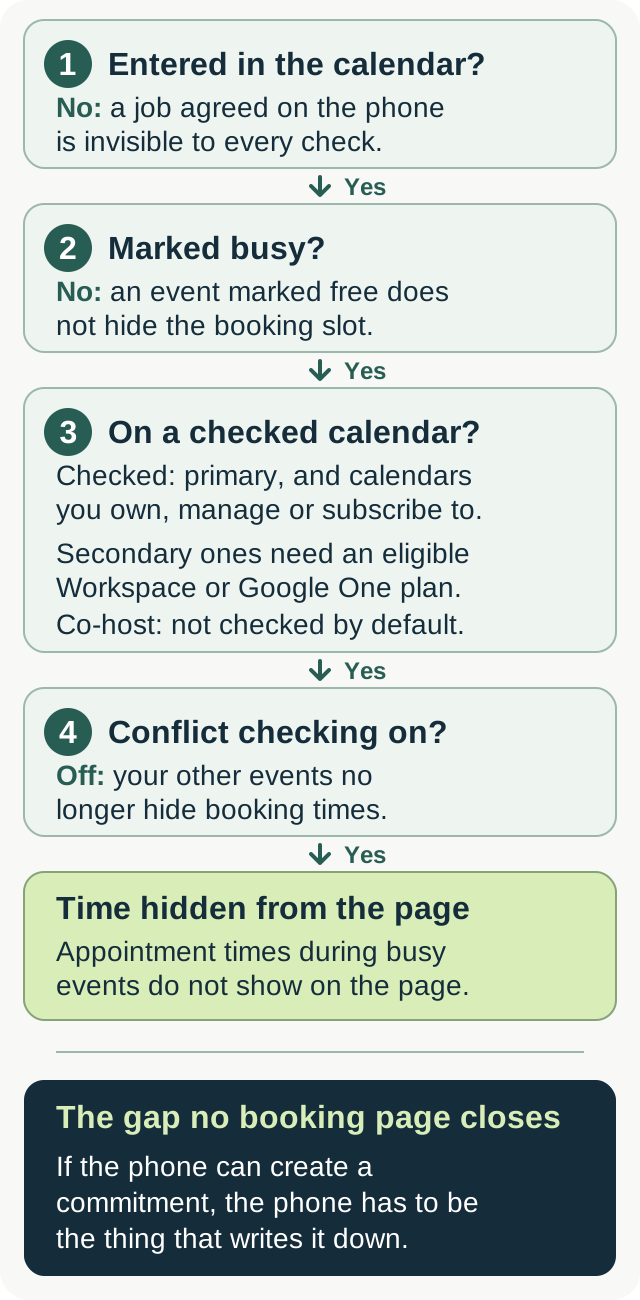
If customers book through a booking page, the relevant control is the setting Google labels Check calendars for availability. With it on, appointment times during events set to busy do not show on the booking page, and no times at all show on a day where you have an all-day busy event. Accepting someone else's invitation counts too: Google says an RSVP of Yes or Maybe on a checked calendar removes that block of time.
What the Check calendars for availability setting checks is bounded. Google describes the set as your primary calendar and any calendars you own, manage or are subscribed to — and to check availability from secondary calendars you need an eligible Google Workspace or Google One plan. If you run a free personal account, you are working from one calendar.
An appointment schedule has three more limits worth knowing before you trust it. Co-host calendars are not checked by default. A schedule created on a shared calendar may not let you pick other calendars to review at all. And an appointment schedule cannot be placed on a resource calendar.
Turning off Check calendars for availability does not let the same appointment slot go twice. Google is explicit that each appointment time can be booked only once regardless, and that the time disappears from the page once taken. What you lose is protection against your own other events.
The settings that do the real work
Three booked-appointment settings decide how much room you leave yourself. Buffer time adds time between appointments, which is travel time for a trade. Maximum bookings per day caps how many visits you will accept. The scheduling window sets both how far ahead someone can book and the minimum notice you require — Google says there is a 4-hour minimum lead time by default.
Google publishes no default or range for buffer time or the daily cap, so pick them from your own day rather than from a number you read somewhere. For a one-truck shop the honest starting point is the drive between the two furthest jobs you would accept in a morning.
The gap no booking page closes
Every check an appointment schedule makes reads your Google Calendar. None of them knows about the job you agreed to on the phone while standing in someone's kitchen and meant to enter later. That job is not busy time, so the booking page offers the slot, and the double booking is made before you reach the truck.
A job agreed on the phone and never entered is why the fix for double bookings is rarely another calendar setting. If the phone can create a commitment, the phone has to be the thing that writes it down.
How CallBooking.ai books without stacking jobs
CallBooking.ai books calls into an arrival window with a capacity — the number of jobs that fit in that window, not one job per window. A one-truck shop sets its windows to 1; the onboarding form prefills higher numbers, so that is a deliberate choice you make rather than a default you inherit.
On CallBooking.ai's own schedule, a booking is written by a single database statement that counts the bookings already in the chosen arrival window as part of the write. The database decides who gets the last slot, rather than the order two requests happened to arrive in. A caller who loses that race is not told something went wrong: the assistant hears that the window just filled up and offers up to two other real windows instead, or takes a message if nothing else is open.
If you connect your own calendar to CallBooking.ai, arrival-window capacity is measured from that calendar's busy and tentative time as well. Time you block out by hand consumes capacity, so the assistant will not book over it, and a busy all-day entry closes the day. Entries marked free, and deleted ones, are ignored.
CallBooking.ai's assistant has two honest limits. The assistant has no cancel or reschedule tool, so changing an existing appointment is still your job. And it never states a time that did not come from a real availability check — no rounding, and no "sometime Tuesday".
Glossary
A double booking is two commitments held for the same span of time. On an ordinary Google Calendar both are simply stored; nothing refuses the second.
An appointment schedule is the set of rules behind a Google Calendar booking page: when customers may book, for how long, and which of your calendars are checked first.
Conflict checking is the appointment-schedule setting Google labels "Check calendars for availability". It hides booking times that clash with busy events on the calendars it is allowed to read.
Busy is the free/busy status that makes an event count against your availability. An event marked free does not hide a booking slot, which is why a mis-set status is a common cause of a surprise overlap.
An arrival window is a named span of time a visit is booked into, such as between 8 and noon, rather than a fixed start time. It carries a capacity: the number of jobs that fit in it.
Questions about double bookings
Does Google Calendar warn you about overlapping events?
Not on an ordinary calendar. Across Google's own help pages there is no documented setting that refuses or warns when two normal events overlap on your calendar; they simply appear side by side. The exception is a room resource, which Google says declines a request immediately if it is already booked for that time.
Can two customers book the same appointment slot?
No. Google states that each appointment time on a booking page can only be booked once, even with conflict checking turned off, and that once someone books it the time is removed from the page. The double-booking risk is against your other events, not against a second booking of the same slot.
Why did a booking land on top of a job I already had?
Usually because the job was not busy time on a calendar the booking page checks. Appointment schedules check your primary calendar and calendars you own, manage or are subscribed to, and checking secondary calendars needs an eligible Google Workspace or Google One plan. Co-host calendars are not checked by default, and a job you agreed on the phone and never entered is invisible to all of it.
Sources checked
Google's pages on appointment schedule availability, creating an appointment schedule and room declines, all read on November 11, 2026, plus Google's April 2019 Workspace Updates post avoid double-booking rooms in Calendar and the IETF's RFC 5545 time transparency section, read on November 12, 2026. Google changes this interface, and its help pages carry no published revision date, so re-check before relying on a detail.