
Key takeaways
Use Google Calendar's appointment schedules: open Create, choose Appointment schedule, set the visit length and your hours, turn on "Check calendars for availability," finish the booking page and share its link. For a one-person trade business, start with 30 minutes of buffer time, three or four bookings a day and four hours' minimum lead time.
Adjust those settings to fit the jobs you take. If you use a two-hour appointment to reserve an arrival window, explain the window in the booking text. People who call while you're working still need a way to reach you or get a response.
Glossary
An appointment schedule is the set of rules that controls when customers can book time with you in Google Calendar.
A booking page is the page customers open to see available times and book a visit.
Buffer time is the gap you leave between appointments for travel or a job that runs late.
Lead time is the minimum notice you require before an appointment starts.
A booking window controls how far ahead customers can schedule a visit.
Can I use Google Calendar to schedule appointments?
Yes. The appointment schedules feature lets you set your hours and share a booking page with customers. Google retired the older appointment slots tool.
For a one-person trade business, the booking page gives customers somewhere to schedule a visit after hours. They choose an available time, fill in the form, and the booking appears on your calendar.
A Google Calendar booking page still depends on customers finding the link. If you're under a sink when the phone rings, a booking page won't answer the call.
How do you create bookable appointments in Google Calendar?
Step 1: Open Create > Appointment schedule
Open Google Calendar on a computer, click "Create," and choose "Appointment schedule." Give it a name your customers will recognize, such as "Plumbing visit booking."
Step 2: Set the duration and recurring days
Choose how long each appointment will run. Start with 60 minutes if that fits the service you're offering. Then set your available days and hours. If you want visits booked Monday through Friday between 8 AM and 4 PM, enter those hours.
The weekly schedule repeats. Update your availability when you take time off or commit to work outside that schedule.
Step 3: Choose the calendar and check for conflicts
Use the calendar you keep up to date. Turn on "Check calendars for availability" so busy events on the checked calendar block those times from booking. Checking several calendars requires an eligible subscription.
If you want bookings on a separate work calendar, check that your plan supports appointment schedules on secondary calendars. Sharing your booking page alone doesn't reveal the other events on your calendar.
Step 4: Finish the booking page
Click "Next" to set the location, description, and booking form. Explain what customers are booking. Add fields for a phone number and notes about the job if you need them. Google requires a first name, last name, and email address; it won't collect the other details unless you add them.
Click "Save."
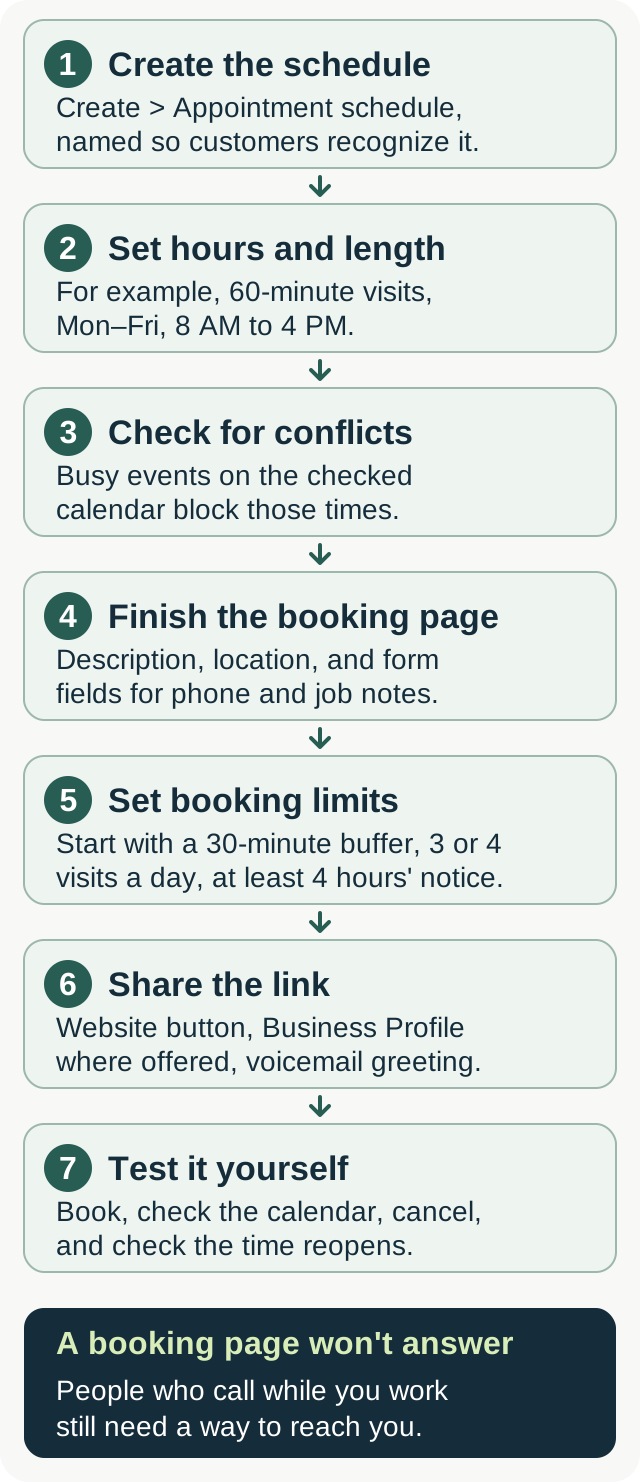
Which settings work for a one-person trade business?
Buffer time between jobs
Start with a 30-minute buffer. Check whether that leaves enough time to drive between jobs, including trips between Mount Sinai and Port Jefferson. A repair that runs late can use up that gap before you reach the truck.
To change the buffer, open your schedule, click "Edit appointment schedule," then open "Booked appointment settings" and turn on "Buffer time."
Maximum bookings per day
In "Booked appointment settings," set "Maximum bookings per day" to three or four as a starting point. Lower the cap when the work needs longer visits. You're the person doing every job, so leave room for the work already on your calendar.
Booking window and minimum lead time
Under "Scheduling window," set how far ahead customers can book and how much notice you need. A 60-day window can work for planned HVAC maintenance. For visits you can only commit to in the next day or two, keep it shorter.
Start with at least four hours of lead time. That stops someone booking you for 2:15 PM while you're still on another job at 2 PM.
How do you book arrival windows instead of exact times?
A customer who books 10:15 AM expects you at 10:15. If you offer arrival between 9 and 11 AM, the booking text needs to say that.
You can use Google's duration and availability settings as a workaround. Set a custom duration of 120 minutes, then make the available period 9 to 11 AM. A booking then reserves the whole period as one appointment. Put the arrival window in the title and description so customers understand when you'll arrive.
Google will still create an event with a start and end time. A two-hour duration alone doesn't tell the customer that you might arrive at any point within it.
Leave travel time between windows and block any extra time you expect the job to take on a calendar your booking page checks. Arriving by 11 AM says nothing about when the repair will be finished.
How do you share your booking link with customers?
On a computer, find "Booking pages" on the left side of Google Calendar. Hover over your booking page and click "Copy link."
Put a "Book a visit" button in your website header and link it to your booking page. If your Google Business Profile offers booking links, add it there too. Availability depends on the business and region, and the profile must be verified.
Your voicemail greeting can tell callers how to find the booking page on your website. Use a web address they can remember or write down.
How do you manage confirmed appointments and cancellations?
A confirmed booking appears as an event on your calendar. Before you head out, check the customer's details and any notes they submitted. Work out which parts to load and check the agreed arrival window.
If you need to move a job, agree on the new time with the customer, edit the event, and click "Save." Choose to send the guest an email update when prompted.
Customers can cancel through the link in their confirmation email. The canceled time becomes available again on your booking page, subject to your booking limits. To change the appointment, they can cancel and book another available time.
If you're moving a visit at short notice, call the customer as well. Sending an email doesn't tell you whether they've read it.
What can't Google Calendar do while you're on a job?
Appointment schedules handle customers who reach your booking page. A caller who gets voicemail may hang up before they hear where to book. After-hours calls have the same problem.
An answering service can handle calls you miss on a job or after hours and, with a working calendar connection, book appointments. CallBooking.ai's plan starts at $149 per month, with 40, 100 or 200 billable calls included depending on the plan. Calendar booking depends on a supported connection, which we test before activation.
CallBooking.ai doesn't quote repairs or diagnose problems over the phone. Those questions still need your callback.
Whatever service you choose, test the booking yourself. Call your number at 7 PM, ask to book a visit, and check that an event appears on the right calendar with the agreed arrival window. Check the customer details too. A message saying someone wants an appointment still leaves you with a call to make.
How do you test the setup before a customer books?
Open the booking link on your phone and make a booking with a second email address or a family member's account. Read the page as a customer would. Check that the arrival window is clear and the form asks for the details you need.
Confirm that the event lands on the right calendar and that booking emails and any phone alerts reach you. Pay attention to notifications if you use a secondary calendar, since those settings differ from your main calendar.
Then reopen the booking page and check the times around your test appointment. Make sure another customer can't book into the travel gap you meant to leave.
Cancel the test booking and check that the time becomes available again, provided it still falls within your booking rules.
FAQ
Is Google Calendar's appointment scheduling feature free?
A personal Google Account lets you create one booking page. Some features require an eligible paid subscription, including automatic email reminders and checking availability across multiple calendars. Taking payments and putting schedules on secondary calendars have their own plan requirements. Check Google's feature comparison before building your booking process around a paid feature.
Can customers reschedule or cancel their own booking?
Customers can use their confirmation email to cancel. They can then choose another available time through your booking page. Test the process with your own booking so you know what customers will see.
Does Google Calendar sync bookings to Jobber or Housecall Pro?
The standard connections for Jobber and Housecall Pro work one way, from those apps into Google Calendar. A booking made through your Google Calendar link won't automatically become a job in either system.
If you use another connection to create jobs from Google bookings, test the whole process before relying on it.
How far ahead should I open bookings for emergency work?
Use a short window for visits you can commit to, such as the next day or two. For a burst pipe, have the customer call so you can confirm whether you can attend. An open calendar slot doesn't promise an emergency response.
Planned maintenance can sit further ahead, such as the 60-day window used for seasonal HVAC visits.
What happens if two customers try to book the same slot?
Each appointment time on a Google booking page can be booked once. Once it's booked, Google removes that time from the page.
Keep your own commitments on the calendar too. If you promise someone a visit over the phone, add it as a busy event on a calendar your booking page checks before you take the next call.