
Key takeaways
Open the Phone app's call history (the Home or Recents tab) and use a Missed filter if there is one. That list, not the badge showing 60, is the count to work from: the badge doesn't tell you how many different people called. Check dates, times and voicemail before treating it as a callback list.
Badge behavior depends on the app and launcher. Android has no universal missed-call badge limit of 99. Some phones show a number; Pixel's standard notification indicator is a dot.
Review the calls and messages before clearing an alert. Clearing cache removes temporary data, while clearing storage resets app data. Don't assume your call history or settings will survive a storage reset.
If an indicator keeps returning, identify the app and notification behind it. A recurring badge alone doesn't establish a carrier fault or a backlog of lost jobs.
Glossary
A badge is the number or dot shown on an app icon to indicate something needs attention.
The launcher is the app that displays your home screen and app icons.
The dialer is the Phone app you use to make and receive calls.
Call history is the list of calls recorded in the Phone app.
Visual voicemail lets you view and manage voicemail messages through an app or a section of the Phone app.
Why does Android show 60 or 99 missed calls?
Check what the indicator represents before treating it as a count of missed calls. A number on the Phone icon, a voicemail indicator, and entries in your call history can represent different things.
What the badge counts
The app posts notifications, and the launcher displays the home-screen indicator. Android supports notification badges linked to active notifications, and an app can supply a count representing several items. Android's badge documentation explains that relationship.
Check the actual notifications and call entries behind the number. Repeated calls from one person are still separate calls, even though they aren't separate customers.
What a displayed count of 99 means
There isn't an Android-wide rule that every missed-call badge stops at 99. Android allows apps to provide their own notification counts, and the display depends on the launcher and app.
If your indicator stays at 99, check the documentation for your particular setup. The number alone doesn't tell you whether more calls arrived, whether the display has a limit, or whether an old notification remains active.
Where do I find today's missed calls?
Open the Phone app's call history
Open Phone and look for Home or Recents, depending on your app and version. Google's current call-history instructions use the Home tab. Use a Missed filter if your dialer offers one, then check the dates and times.
Work from the missed-call entries in your call history when deciding whom to call back. If the badge and the history don't match, inspect the notifications separately before deciding the count is wrong.
Check voicemail separately
Open Visual Voicemail or use your carrier's voicemail number. Review the messages you need to hear. A call that ended without a message won't create a voicemail for you to play.
Keep the call history and voicemail list in view as separate records. A voicemail count doesn't tell you about every unanswered caller.
How do I clear a stuck missed-call badge?
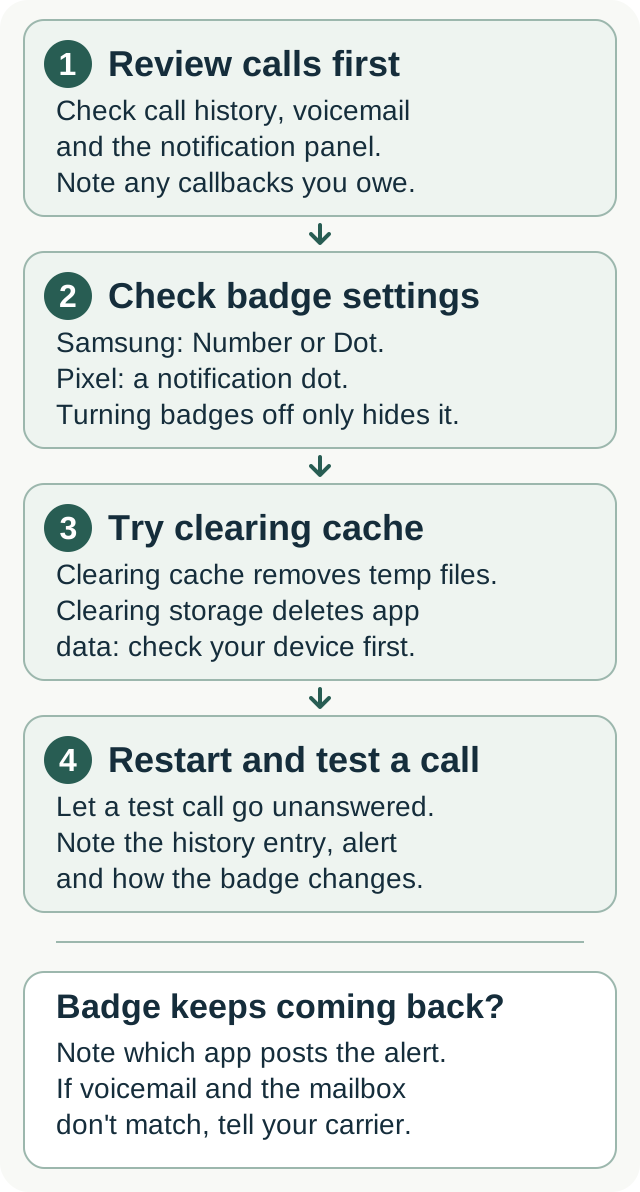
Step 1: Review the calls, messages, and notification
Open the call history and voicemail, then pull down the notification panel. Look for the Phone or voicemail alert associated with the indicator.
Once you've recorded any callbacks you owe, dismiss an old notification if you no longer need it. On notification-based badge systems, clearing an alert can also clear the badge. Samsung documents this link between notifications and badges.
You don't need to delete voicemail messages just to investigate an indicator. Keep any messages you still need.
Step 2: Check the badge and notification settings
On supported Samsung phones, open Settings > Notifications > Advanced settings > App icon badges. You can choose Number or Dot. Screens and options vary by model and software. Samsung's current instructions cover those controls.
On Pixel, Google documents notification dots under Settings > Notifications > Notification dot on app icon. A dot indicates a notification from that app.
Also check the Phone app's notification settings and any Missed calls category it provides. Keep the alerts you need enabled. Turning badges off hides the indicator; it doesn't deal with callbacks for you.
Step 3: Try clearing cache
If the app's display is still misbehaving, check whether your device offers Settings > Apps > Phone > Storage > Clear cache. Treat this as a troubleshooting step, then test the result.
Clearing cache removes temporary data; clearing storage deletes app data. Check your device's instructions before clearing Phone storage.
Step 4: Restart and test a new call
Restart the phone. Have someone call from another phone and let the call go unanswered. Note what appears in call history, which notification arrives, and how the indicator changes after you review or dismiss it.
If you use a different launcher, check its badge settings too. Avoid treating a launcher data reset as routine cleanup: clearing One UI Home data resets the home-screen layout and settings.
When could voicemail or carrier settings be involved?
Open the notification panel and note which app posts the returning alert.
After a carrier change or SIM move
If the problem began after changing carriers or moving your SIM, check that voicemail is set up for the current line. Try accessing the mailbox directly and compare what you hear with the messages shown in the app.
If the app says there are new messages but the mailbox doesn't match, give the carrier that result. Verizon's voicemail troubleshooting includes checking setup and access, restarting, and reviewing the voicemail app. Follow the instructions for your own carrier and phone.
When unfamiliar numbers keep appearing
Review the call entries and any spam labels. An unknown number with no voicemail can still be a customer; those details alone don't establish that it's a robocall.
Use your dialer's filtering controls and check what they do to notifications and history. Google's Phone app, for example, can keep filtered spam calls in history while suppressing missed-call notifications.
Do Google Phone, Samsung Phone, and other dialers show the same badge?
No. The app, notification settings, and launcher all affect what you see. A Phone app with a numeric indicator on one home screen can appear with a dot on another.
Confirm which app is your default dialer and which app owns the notification. Google explains how to set its Phone app as the default.
For Samsung badge controls, use the instructions for your model. For Pixel's standard home screen, expect the notification-dot behavior described by Google. Check a third-party launcher's own documentation if you've changed the home-screen app.
Can I customize alerts for particular contacts?
A custom ringtone can help you recognize an incoming caller, but it doesn't establish a separate missed-call badge for that person. Pixel supports assigning contact ringtones; other devices have their own controls.
For Do Not Disturb, review the actual People or Calls rules in the active mode. Starring a contact only helps if your settings allow starred contacts through. Check automatic schedules as well.
If new customer calls are being silenced or alerts are missing altogether, use our broader missed-call troubleshooting guide to check ringing, filtering, and notification delivery.
What does a high count mean for a one-person trade business?
Use the call records to build a callback list. Check which numbers called repeatedly, who left a message, and which inquiries still need a response. A badge count alone can't tell you how many jobs you lost.
If real calls keep going unanswered while you're working, decide where they should go. A callback process, human answering service, or AI answering service can each form part of that setup. Booking capabilities depend on the provider and plan. Both Smith.ai and Ruby describe appointment-scheduling services.
CallBooking.ai handles forwarded calls for home service businesses, with agreed booking, callback, and configured on-call rules. Calendar connections and the call flow are tested before activation. We don't quote repair prices or diagnose problems.
The CallBooking.ai plan costs from $149 per calendar month, with 40, 100 or 200 billable calls included depending on the plan, with additional usage billed separately. New businesses are taken on a few at a time, because each one is configured and tested with a person before it goes live; each business's caller service area is configured separately.
Answering coverage addresses how future calls are handled. The badge and any existing callback list still need to be checked on your phone.
FAQ
Why is my badge higher than the number of calls I can see?
Check which app and notification the badge represents. The indicator may reflect active notifications or an app-supplied count, while the history view may be filtered. Compare the call entries and voicemail before deciding what needs attention.
How do I stop the badge from coming back?
Identify the notification that returns, review the associated calls or messages, and test after a restart. If voicemail doesn't match the mailbox, contact your carrier with those details. Avoid deleting messages or clearing all app data just to remove the number.
Does clearing Phone storage delete call history?
Don't assume clearing Phone storage is safe for every app and phone. Clearing storage resets app data, and the effect on saved information depends on the device and app. Check the manufacturer's instructions before proceeding. Clearing cache is a separate action that removes temporary files.
Can an answering service clear my missed-call backlog?
An answering service can help handle future calls according to how you configure it. It won't repair an existing badge or establish which old callers still need a response. Review the records and confirm what booking or callback work the service actually performs.
Is a 99-count badge the same on Samsung and Pixel?
No. Samsung offers numeric badges or dots on supported models, while Google's standard Pixel guidance describes dots. There's no universal Android rule that both show a numeric missed-call count capped at 99.